Image Browser · Burnham-on-Sea History Project
Image Maintenance Guide: adding photos and descriptions
For the team who scan photos, save them on the NAS and record them in the archive spreadsheet, and who correct descriptions. You'll need to be happy copying files into folders and editing a spreadsheet in Excel or LibreOffice Calc.
1. How a photo gets onto the site
Every photo on the site is made of two things, which must agree with each other exactly:
- The photo file: a JPEG saved on the NAS (the project's shared network storage), in a folder for its collection and its page (or tray, or box).
- A row in the archive spreadsheet,
Archive Index Numbers.xlsx, on the sheet for its category, saying which collection, which page and which file, plus its description and date.
Then an admin clicks Import on the Image Browser's Admin Panel. The import reads every row, finds each row's photo file on the NAS, and puts both on the site.
saved as a JPEG in
collection\images\page\file.jpgon the NAS
Collection
Folder/Page No
Image File Name
(+ description, date)
by an admin
The row's three name columns must match the photo's collection folder, page folder and file name exactly.
The collections at the moment are:
| Collection | What it is | Folders named like | Files named like |
|---|---|---|---|
W-Thomas-Negatives | W R Thomas's album of negatives | Page 1, Page 2, … | image-P02019.jpg |
W-Thomas-Slides | W Thomas's slides, by tray | Tray A38-1, Tray A38-2, … | image381001.jpg |
A new collection (a new album or donation) needs setting up once by whoever installed the Image Browser, before its photos can be imported. Ask them first, and agree its name: it's used, spelled exactly the same, for its folder and in every one of its rows.
2. What you need
- Access to the NAS share that holds the collections, from your computer: in
Windows File Explorer, it's a network location such as
\\NAS-DS920\docker. Your admin can set this up and tell you the user name and password. - The archive spreadsheet,
Archive Index Numbers.xlsx. It lives on the computer that runs the Image Browser, in itsdatafolder (on the centre's Image Browser PC:C:\image-browser\data\Archive Index Numbers.xlsx). Your admin will tell you how to reach it. - Excel or the free LibreOffice Calc, to edit it.
- Your scanner's software, set to save JPEG files.
Only one copy of the spreadsheet is the real one. Always edit the copy the Image Browser reads, never one you've saved on your own computer or emailed round: the import only sees that one. Only one person should have it open at a time.
When the Image Browser is updated to a new version, the update brings its own copy of the spreadsheet. So before every update, make sure whoever does the update has your latest spreadsheet, or your recent changes could be replaced by an older copy.
3. Scanning and saving photos on the NAS
Where each photo goes
Each collection has a folder of its own on the NAS, with an images folder inside it,
and inside that a folder for each page (or tray). Normally that's:
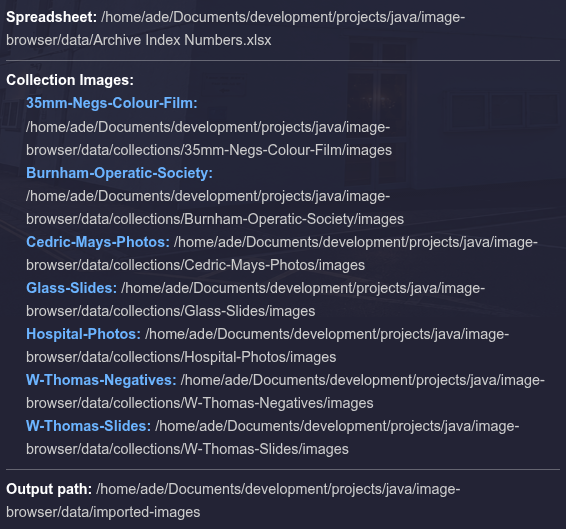
Not sure where a collection's folder is? Each Image Browser can be set up to read a collection from anywhere on the NAS. The Admin Panel lists the exact folder for each collection, under Collection Images; ask your admin to read it out to you, and use exactly that folder.
Step by step
- Scan the photo, and save it as a JPEG (
.jpg). The Image Browser only shows JPEGs. Keep a TIFF too if you like, for the archive; save it beside the JPEG with the same name. - Name the file following the collection's pattern, for example
image-P12003.jpgfor the third photo on page 12. Each file name in a page folder must be different. Stick to the collection's own pattern, so no name is ever the same as one in another collection. - In File Explorer, open the collection's
imagesfolder on the NAS, and the page's folder inside it. If it's a new page, make the folder: right-click → New → Folder, and name it like the others (Page 12). - Copy the JPEG into the page folder.
- Write down the three things you'll need for its row: the collection, the folder name and the file name, exactly as they are on the NAS.
Spelling matters, including capitals and spaces. To the Image Browser,
Page 12, page 12, Page12 and Page 12 (with a
space at the end) are four different folders, and image-P12003.jpg and
image-P12003.JPG are different files. Copy and paste names rather than retyping
them.
And never rename or move a photo, or a folder, that's already on the site: its row would no longer find it. If one really has to change, see section 9.
Replacing a photo with a better scan is fine: save it over the old file with exactly the same name, and the next import picks up the new one.
4. The archive spreadsheet
The spreadsheet has one sheet (the tabs along the bottom) for each category. A photo appears on the site in the category of the sheet its row is on.
| Sheet tab | Shown on the site as | Sheet tab | Shown on the site as |
|---|---|---|---|
AERIAL_IMAGES | Aerial Images | INDUSTRY_AND_WORKS | Industry and Works |
AGRICULTURE | Agriculture | LIGHTHOUSES | Lighthouses |
AVIATION | Aviation | MAPS etc | Maps etc |
BEACH_AND_SEAFRONT | Beach and Seafront | PEOPLE_AND_GROUPS | People and Groups |
CHURCHES_AND_RELIGION | Churches and Religion | PLACES_FURTHER_AFIELD | Places Further Afield |
CIVIC_AND_PUBLIC_SERVICES | Civic and Public Services | RAILWAYS | Railways |
ENTERTAINMENT_AND_EVENTS | Entertainment and Events | ROAD_TRANSPORT | Road Transport |
FLOODS_AND_WEATHER | Floods and Weather | ROYALTY_AND_CELEBRATIONS | Royalty and Celebrations |
HEALTH_AND_HOSPITALS | Health and Hospitals | SCHOOLS_AND_EDUCATION | Schools and Education |
HOMES_AND_BUILDINGS | Homes and Buildings | SEA_DEFENCES | Sea Defences |
HOTELS_PUBS_AND_CAFES | Hotels Pubs and Cafes | SHIPS_BOATS_AND_RIVER | Ships Boats and River |
INCIDENTS_AND_ACCIDENTS | Incidents and Accidents | SHOPS_AND_BUSINESSES | Shops and Businesses |
STREETS | Streets | SPORT_AND_LEISURE | Sport and Leisure |
UNKNOWN_UNIDENTIFIED | Unknown Unidentified | WAR_AND_MILITARY | War and Military |
PARKS_AND_GARDENS | Parks and Gardens |
The TOPICS, BOX_FILES and ARTEFACTS sheets aren't shown on the
site (they're the archive's records of topics, box files and artefacts), so don't add photos
there. If you can't tell what a photo is of,
use UNKNOWN_UNIDENTIFIED.
Never rename, delete or reorder the sheet tabs, or change the headings in row 1. The Image Browser finds its columns by their headings, and won't even start if a category sheet it expects has gone. A new category has to be set up by whoever installed the Image Browser.
The columns
Row 1 of each sheet holds the headings. These are the ones the Image Browser reads; the other columns (such as Photo/Copy post card or PUBLISHER) are the archive's own, and you can fill them in or not as usual.
| Heading | What to put in it | Needed? |
|---|---|---|
| Collection (column A) | The collection's name, exactly as its
folder is named: W-Thomas-Negatives. (Left blank on the archive's own older rows,
which have no scanned photo.) | Yes |
| DATE | The year or date, if known, for example 1911 or
1910's. Shown in brackets after the description. (Only some sheets have a DATE
column; where there isn't one, leave it out.) | No |
| DESCRIPTION/ NOTES | What the photo shows. This is what visitors search, so mention the place, street, building, people and event. | No, but please do |
| Folder/Page No | The page folder's name, exactly as on the NAS:
Page 2. | Yes |
| Image File Name | The file's name, exactly as on the NAS, with
.jpg: image-P02019.jpg. | Yes |
5. Adding a row for each photo
Here's part of the AVIATION sheet, with two existing rows and a new one (row 74) being
added. The yellow cells are the three that must match the NAS exactly.
| Row | A | B | C | D | E | F | G |
|---|---|---|---|---|---|---|---|
| 1 | Collection | REF. NO. | LOCATION | DATE | DESCRIPTION/ NOTES | Folder/Page No | Image File Name |
| … | |||||||
| 72 | W-Thomas-Negatives | Newspaper cutting "Burnham Aviation - Fine flight by Mr Hucks" (second flight to Minehead) | Page 2 | image-P02019.jpg | |||
| 73 | W-Thomas-Negatives | Handley Page bomber that landed on the beach (1918?), surrounded by a crowd | Page 4 | image-P04016.jpg | |||
| 74 | W-Thomas-Negatives | Burnham | 1912 | Biplane on the beach at low tide, crowd watching from the jetty | Page 12 | image-P12003.jpg | |
Row 74 is an example of a new photo; rows 72 and 73 are real.
- Close the spreadsheet everywhere else, then open it.
- Click the sheet tab for the photo's category (see the table in section 4).
- Go to the first empty row after the last one (Ctrl+↓ in column A jumps to the last filled row).
- Fill in Collection, Folder/Page No and Image File Name, copied from the NAS, then the DESCRIPTION/ NOTES and DATE if you know them.
- Do the same for each photo: one row per photo.
- Save (Ctrl+S) and close the spreadsheet. In LibreOffice,
when asked, choose Use Excel 2007-365! to keep it as
.xlsx. - Ask an admin to run an import.
How it will look on the site
The import puts the category's name in front of your description, and the date after it, so row 74 above is shown and searched as:
[Aviation] - Biplane on the beach at low tide, crowd watching from the jetty (1912)So you don't need to write the category or the date into the description itself. A row with no description still appears (as just [Aviation]), so you can add the photos first and the descriptions later.
Rules the import follows:
- A row with an empty Folder/Page No or Image File Name is a record with no photo; it's left off the site.
- A file that isn't a JPEG (a
.tif, say) is skipped. - If two rows on the same sheet name the same folder and file, only the first is used; on two different sheets, the photo shows in both categories. So each photo needs exactly one row, on one sheet.
- Blank rows in between are harmless.
6. Getting your changes onto the site
Nothing you change appears on the site until an admin runs Import from Spreadsheet on the Admin Panel (see the Admin Guide). Make sure the spreadsheet is saved and closed first.
Afterwards, ask the admin what the summary said, or for the full import report (a text file). Two lines in it are about your work:
| Summary line | Means | What to do |
|---|---|---|
| Total rows with missing image file | A row names a photo that isn't on the NAS where the row says. | The report lists each one. Compare its folder and file name with the NAS, letter by letter, and correct whichever is wrong. |
| Total image files with no row | A JPEG on the NAS that no row names. | The report lists each one. Add its row, or check the name in its row matches. (Fine if it's deliberately not on the site yet.) |
Then open the Image Browser and search for one of your new photos to check it's there.
7. Finding a photo's row with the Info button
To correct or add to a photo that's already on the site, you need its row in the spreadsheet. The Image Browser tells you exactly where that is.
- Find the photo on the Image Browser (search for it, or browse) and click it to open it full size.
- Hold the mouse over the blue i button in the top right-hand corner (or click it).
A box opens with the photo's details:
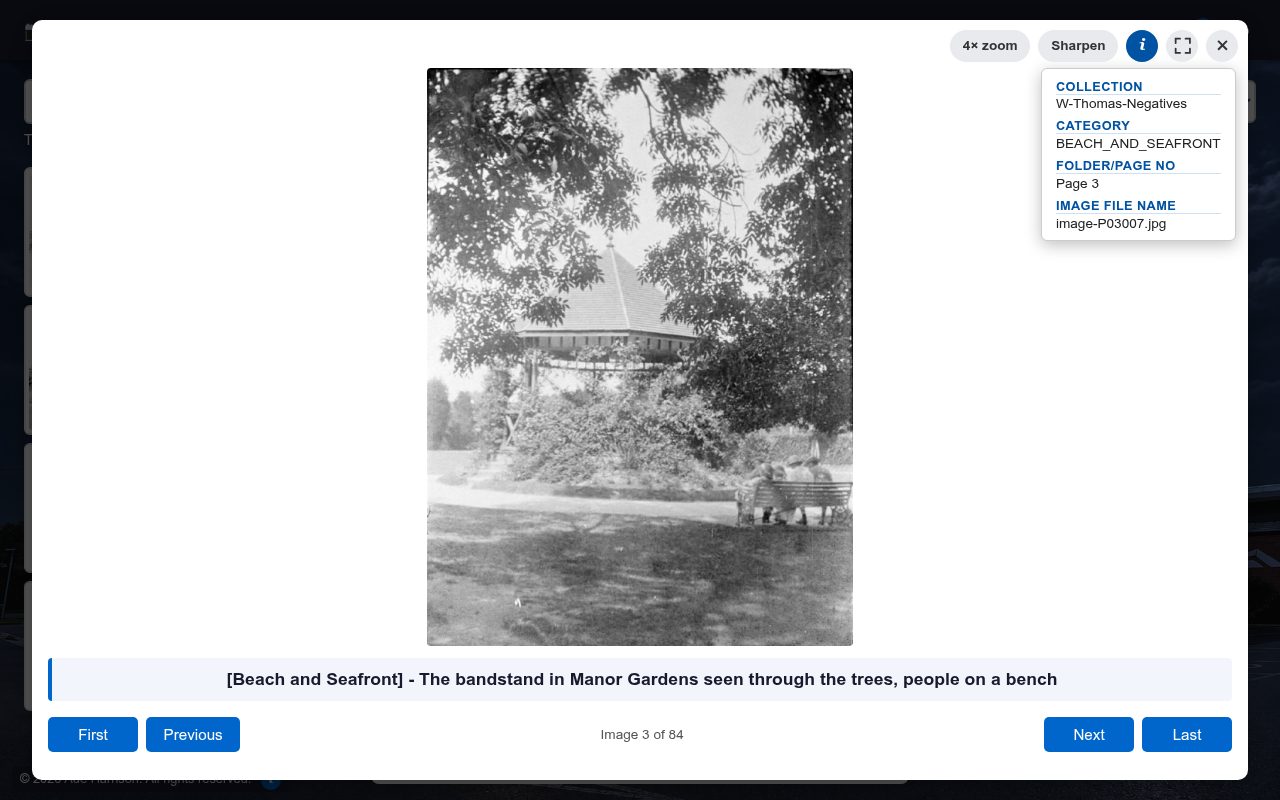
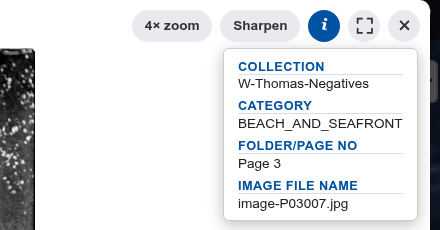
- Note down all four lines. They tell you:
The same four lines also tell you where the photo's file is on the NAS:Info box line Where to look in the spreadsheet Example Category The spreadsheet sheet tab the row is on BEACH_AND_SEAFRONTCollection Column Collection W-Thomas-NegativesFolder/Page No Column Folder/Page No Page 3Image File Name Column Image File Name image-P03007.jpg…\collections\W-Thomas-Negatives\images\Page 3\image-P03007.jpg. - Open the spreadsheet and click the sheet tab named in Spreadsheet Sheet Name.
- Press Ctrl+F and search for the Image File Name
(
image-P03007.jpg). - Check the row it finds also has the same Folder/Page No and Collection: the same file name can be used on another page, or in another collection. If they don't match, press Find Next until they do.
Searching every sheet at once: in Excel, click Options >> in the Find box and set Within to Workbook. In LibreOffice Calc, use Ctrl+H (Find & Replace), tick All sheets under Other options, and click Find All.
8. Correcting a description or date
- Find the photo's row, as in section 7.
- Change its DESCRIPTION/ NOTES or DATE. Leave Collection, Folder/Page No and Image File Name as they are.
- Save and close the spreadsheet.
- Ask an admin to run an import. The photo keeps its place on the site, with the new description.
Visitors can't change anything themselves, but they can tell you about a photo using its Info box (the User Guide asks them to): those four lines take you straight to its row.
9. Moving, removing or renaming photos
An ordinary import adds and updates, but never removes anything from the site. So these changes need an admin to run a Full Reimport afterwards, which rebuilds the whole site and takes a long time (see the Admin Guide). Save them up and do them together, and let the admin know.
| To… | Do this | Without a Full Reimport… |
|---|---|---|
| Move a photo to another category | Cut its whole row from one sheet and paste it on the other, under the right headings (the columns aren't in the same order on every sheet, so check each one). The file stays where it is on the NAS. | it shows in both categories |
| Remove a photo from the site | Delete its row. | it stays on the site |
| Rename a photo or a page folder | Rename it on the NAS and change its row(s) to match. | the old one stays, alongside the new |
10. Checklist and common mistakes
Before asking for an import
- ☐ Every new photo is a JPEG, in its collection's
imagesfolder, in the right page folder. - ☐ Every new photo has one row, on the right category sheet.
- ☐ Each row's Collection, Folder/Page No and
Image File Name match the NAS exactly (capitals, spaces,
.jpg). - ☐ The spreadsheet is saved as .xlsx and closed.
Common mistakes
| Mistake | What happens | Fix |
|---|---|---|
Typing Page12 in the row when the folder is Page 12 | Counted as a missing image file; not on the site | Correct the row |
Leaving off .jpg, or .JPG vs .jpg | Missing image file | Copy the file name from the NAS into the row |
| Saving the scan as TIFF or PNG only | Skipped | Save a JPEG too |
Photo saved in the collection's own folder instead of images\Page … | Missing image file | Move it into the right page folder |
Collection misspelled (W Thomas Negatives) | Missing image file | Copy it from another row of that collection |
| The same photo on two sheets | It shows in both categories | Delete one row (and ask for a Full Reimport) |
| Editing a copy of the spreadsheet on your own computer | The import never sees it | Make the change in the real one |
| Renaming a sheet tab | The Image Browser won't start | Put the name back exactly |